
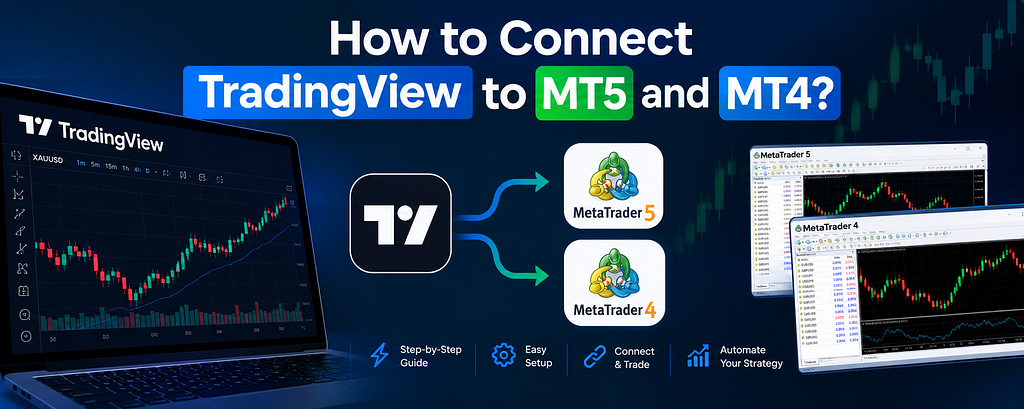
Most traders I know prefer using TradingView for chart analysis and indicators. But when it comes to placing trades, many forex and CFD brokers still use MetaTrader 4 (MT4) or MetaTrader 5 (MT5).
This creates a common problem:
How can you send TradingView signals directly to your MT4 or MT5 account?
The good news is that you don’t necessarily need coding skills to make it work. However, TradingView and MetaTrader can’t be connected automatically. You’ll need a bridge or connector like trade2sync to transfer your signals.
In this guide, I’ll share three ways to connect TradingView to MT4 or MT5, explain how each method works, and walk you through a basic setup you can test on a demo account.
You can connect TradingView to MT5 or MT4 by sending alerts through a webhook URL to a compatible bridge like trade2sync. The service receives the alert, processes the signal, and sends the order to your MetaTrader account. TradingView doesn’t natively place trades on MT4 or MT5, so you need an additional service to connect them and execute without manual efforts.
Can You Connect TradingView to MT5 Directly?
Not for automated trading through a standard MT5 account.
According to TradingView’s Help Center, you can log in to certain supported broker accounts through TradingView, but that doesn’t mean you can execute trades through an MT4 or MT5 account directly.
I find it easier to understand if you think of TradingView and MetaTrader as two separate tools.
TradingView: Where you analyze charts, use indicators, create Pine Script strategies, and set alerts.MetaTrader: Where your broker account receives and executes trading orders.Webhook bridge: The connection that carries a TradingView alert to a service that can send the corresponding order to MetaTrader.
For example, if your TradingView indicator generates a buy signal for gold, the bridge can receive that signal and send a buy order to your MT5 account.
The important thing is to configure the connection correctly. A TradingView alert doesn’t automatically become a trade unless the receiving service understands the message and can execute it.
What Do You Need Before Connecting TradingView to MT5?
Before setting everything up, I recommend checking these four things:
A compatible TradingView plan: If you’re using webhooks, check TradingView’s current plan requirements. Webhook alerts require two-factor authentication on your TradingView account.An MT4 or MT5 account: Start with a demo account so you can test the connection without risking real money.A working TradingView alert: This could come from an indicator, a Pine Script strategy, or a price alert supported by your chosen setup.A bridge or trade copier: You’ll need a service that receives TradingView alerts and sends the corresponding orders to your MetaTrader account.
Once these are ready, you can choose the connection method that fits your technical skills and trading setup.
What Are the Three Ways to Connect TradingView to MT5?
From my perspective, there are three main approaches: building your own bridge, using an EA-based connector, or choosing a cloud trade copier.
The main difference is how the alerts are received and where the software runs.
1. Build Your Own Bridge Using a VPS
If you’re comfortable with programming, you can build a custom bridge using a language such as Python.
The basic process looks like this:
TradingView sends an alert to your webhook endpoint.Your script receives and interprets the alert.The script passes the order details to MetaTrader 5.MT5 sends the order to your broker for execution.
You’ll generally need a server to keep the bridge running. Depending on your setup, you may also need a Windows VPS with the MT5 terminal installed and running.
The biggest advantage is control. You can customize how signals are processed, how orders are placed, and how errors are handled.
However, this approach isn’t completely hands-off. You have to maintain the code, secure the webhook endpoint, monitor the server, and handle problems when something stops working.
You also need to configure the webhook endpoint correctly. TradingView requires the receiving server to respond within three seconds, so slow processing can cause a request to fail.
Note: A DIY bridge makes sense if you have the technical skills and want control over the entire process. If you don’t want to manage servers and code, the other options may be more practical.
2. Use an EA-Based Connector
Another option is to use a connector that works with an Expert Advisor (EA) inside MetaTrader.
In this setup, an external service receives the TradingView webhook. The EA then receives the signal and places the trade in your MT4 or MT5 terminal.
You don’t necessarily have to write your own code, which makes this approach easier for traders who aren’t developers.
However, there’s one important limitation: the MetaTrader desktop terminal needs to remain running for the EA to work.
That’s why many traders use a VPS to keep their terminal online even when their personal computer is switched off.
Also, the MT4 and MT5 mobile apps don’t run EAs themselves. You can monitor trades on your phone, but you can’t use the mobile app alone as the execution bridge.
Note: If you’re already running MetaTrader EAs on a VPS, adding a compatible TradingView connector could be a reasonable option. Otherwise, maintaining an always-on terminal may be more work than you need.
3. Use Cloud Trade Copier
Some cloud trade copiers offer another approach. Instead of running your own server or relying on a desktop terminal, you use a service that receives TradingView alerts and forwards the instructions to your connected trading account.
The general workflow is simple:
Connect your MT4 or MT5 account to the service.Create a webhook and copy its URLAdd that URL to your TradingView alert.Configure your order settingsTest the connection and check whether the orders arrive correctly.
The main advantage is convenience. You don’t need to maintain your own bridge or keep a desktop terminal running just to receive signals.
For example, trade2sync’s TradingView webhook is one option to explore if you want to connect TradingView alerts to MetaTrader without managing your own server.
Of course, a cloud service also introduces some dependency on the provider. Before choosing one, I’d check its execution logs, service reliability, supported brokers, pricing, and error-handling options.
My take: If your goal is to automate TradingView signals without managing a VPS or writing code, a cloud trade copier is probably the easiest route to explore.
How to Connect TradingView to MT5 Step by Step
I’ll use the cloud trade copier method here because it generally involves fewer technical steps. The exact dashboard and settings will depend on the service you choose.
Step 1: Connect Your MT5 Account
First, sign in to your chosen trade copier and connect your MT5 broker account using its supported connection method.
I’d recommend using a demo account for your first test. This gives you a chance to check how the system handles orders before using real funds.
Step 2: Create a Webhook URL
Next, create a webhook in the copier’s dashboard.
The service will provide a URL that TradingView can send alerts to. Copy it carefully because you’ll need it in the next step.
Treat this URL as sensitive information. Depending on how the service authenticates requests, anyone who obtains it could potentially send unwanted alerts to your account.
Step 3: Create an Alert in TradingView
Open TradingView and load the chart containing your indicator or strategy.
Click the alert icon or press Alt + A to open the alert setup window. Select the condition you want to monitor and configure the alert.
Before moving forward, make sure the alert works as expected. There’s little point connecting a signal that doesn’t trigger correctly.
Step 4: Add the Webhook URL
Open the alert’s notification settings.
Enable the Webhook URL option and paste the URL you copied from your trade copier.
Double-check the URL before saving the alert. A small mistake can prevent the service from receiving your signals.
Step 5: Configure the Alert Message
This step is important because the receiving service needs to understand what TradingView is sending.
For example, a simple alert might communicate:
BUY XAUUSD | SL=2345 | TP=2360
This is only an illustrative format, not a universal command. Your copier must support the syntax you use.
If you’re working with a Pine Script strategy, TradingView also supports placeholders such as {{strategy.order.action}} and {{ticker}}. These can help pass information about the strategy’s order and the chart symbol.
Make sure your alert message includes the information your chosen bridge expects, such as the symbol, trade direction, stop-loss, take-profit, and any other required fields.
Step 6: Set Your Risk Rules and Test the Connection
Before activating the setup, review the trading settings.
Depending on your service, you may be able to configure:
Fixed lot size or risk-based position sizing.Stop-loss and take-profit handling.Trading hours and symbol filters.Duplicate signal handling.Maximum position size or other risk limits.
Now trigger a test alert and check the logs on both sides.
Confirm that TradingView sent the alert, the copier received and interpreted it, and the expected order reached your demo account.
I wouldn’t move to a live account until you’ve tested different scenarios, including rejected orders, incorrect symbols, duplicate alerts, and missing stop-loss or take-profit values.
Can You Use Different Strategies With Different Risk Settings?
Yes, provided your chosen service supports separate webhook configurations.
For example, you might want one strategy to trade gold with a fixed lot size and another to trade EUR/USD using a different risk limit.
With a service such as trade2sync, you can explore configuring separate webhooks for different strategies and their respective trading rules. Check the current product documentation to confirm which settings are available for your account.
The key is to avoid assuming that every alert should use the same lot size or risk settings. Each strategy should be configured according to your own risk plan.
How Do You Connect TradingView to MT4?
The overall process is almost identical to connecting TradingView to MT5.
You still need a compatible bridge or trade copier, a webhook URL, a working TradingView alert, and an MT4 account connected to the receiving service.
The main issue I’d pay attention to is symbol mapping.
For example, TradingView may use XAUUSD for gold, while your broker might use GOLD, XAUUSDm, or XAUUSDx.
Although these symbols may refer to the same underlying market, the receiving platform may treat them as different instrument names.
If your copier sends an order using a symbol that doesn’t exist in your broker’s MT4 account, the order may fail.
Check the symbol names in your broker’s Market Watch window and configure the bridge’s symbol mapping if that feature is available.
Also, verify that your broker supports the order type, volume, and stop-loss distance you’re sending.
Can You Connect TradingView to MT5 Using Your Phone?
You can manage parts of the process from your phone, but the mobile app alone isn’t enough to create the entire automated connection.
For example, you can use your phone to monitor charts, check alerts, and review trades. However, an EA-based setup still needs a compatible desktop terminal running somewhere.
A cloud trade copier works differently because the receiving service runs on its own infrastructure. Once everything is configured, you can monitor the setup from your phone without keeping your personal computer switched on.
Some providers also offer dedicated mobile apps. If mobile management is important to you, check which features are supported in the app rather than assuming that every desktop feature is available.
Is There a Free Way to Connect TradingView to MT5?
There may be low-cost or free components, but a completely free setup isn’t guaranteed.
For example, you might find an open-source bridge that you can download without paying for the software. However, you’ll still need to consider server hosting, maintenance, security, and troubleshooting.
You should also check TradingView’s current subscription requirements. Webhook access is plan-dependent, and you shouldn’t assume that the free plan includes it.
Cloud trade copiers may have their own subscription fees or usage limits.
My advice is to compare the total cost of running the connection, not just the price of the bridge itself. A free script that requires hours of maintenance may not be the cheapest option in practice.
Why Didn’t My TradingView Alert Open a Trade on MT5?
If your alert fires but no trade appears in MetaTrader, don’t immediately assume the entire connection is broken. I’d troubleshoot the setup one step at a time.
Here are the first things I’d check.
1. Check the TradingView alert log.
Confirm that the alert actually triggered and that the webhook request was sent. If the alert never fired, the problem may be with the condition or strategy rather than the bridge.
2. Check the receiving service’s logs.
If TradingView sent the alert, check whether the copier received it. A message can reach the service but still fail because its format is incorrect or the symbol isn’t recognized.
3. Verify the symbol name.
Compare the symbol in the alert with the instrument name used by your broker. This is particularly important for gold, indices, and other instruments that may have broker-specific suffixes.
4. Check the order size and margin requirements.
Your broker may reject an order if the volume is below its minimum, the lot increment is invalid, or the account doesn’t have enough available margin.
5. Check the stop-loss and take-profit settings.
An order can fail if its protective levels don’t meet the broker’s requirements or if the bridge interprets the alert incorrectly.
6. Check the account and service connection.
For an EA-based setup, confirm that the terminal and EA are running correctly. For a cloud copier, check the account connection, service status, and any execution errors in the dashboard.
I find it helpful to trace the signal through each stage: TradingView alert, webhook delivery, signal processing, and broker execution. That makes it easier to identify where the problem occurred.
Frequently Asked Questions
Can I connect TradingView to MT5 for free?
Possibly, but it depends on your setup. An open-source bridge may be free, but hosting and maintenance can cost money. TradingView webhook access also depends on your subscription plan, so check its current requirements before choosing a solution.
Do I need a VPS to connect TradingView to MT5?
Not always. A DIY bridge generally needs a server, while an EA-based connector needs a compatible MetaTrader terminal to remain running. A cloud trade copier can handle the connection on its own infrastructure, so you may not need your own VPS.
Does the same method work for TradingView to MT4?
Yes. The basic webhook workflow is the same for both MT4 and MT5. You still need a compatible receiving service, and you must ensure that your broker’s symbol names and order requirements match your alert configuration.
Can TradingView automatically execute trades on MT5?
Not by itself. TradingView can generate alerts, but a compatible bridge or trade copier is needed to convert those alerts into orders on your MetaTrader account.
Is automated TradingView trading safe?
Automation can reduce manual work, but it doesn’t eliminate trading risk or technical failures. Alerts can be delayed, connections can fail, and orders can be rejected or executed differently than expected.
Use a demo account to test the full setup, verify your risk limits, and monitor execution logs. Even after testing, automated trading can lose money, so never assume that a working connection guarantees successful trades.
Final Thoughts
Connecting TradingView to MT4 or MT5 is mainly about finding a reliable way to transfer alerts from one platform to the other.
If you’re comfortable coding, a custom bridge gives you more control. If you already use EAs, an EA-based connector may fit your existing setup. If you’d rather avoid managing a server or keeping a desktop terminal running, a cloud trade copier is worth considering.
Personally, I’d focus on three things before choosing any method: how easy it is to configure, how reliably it handles signals, and how much control you have over risk settings.
Most importantly, test the connection on a demo account before relying on it for live trading. The goal isn’t just to get an alert into MT5; it’s to make sure the entire process works as expected when a real trading signal arrives.
Disclaimer: This article is for educational purposes only. Automated trading involves financial risk, and no connection method guarantees successful execution or profitable results.
How to Connect TradingView to MT5 and MT4? was originally published in Coinmonks on Medium, where people are continuing the conversation by highlighting and responding to this story.